

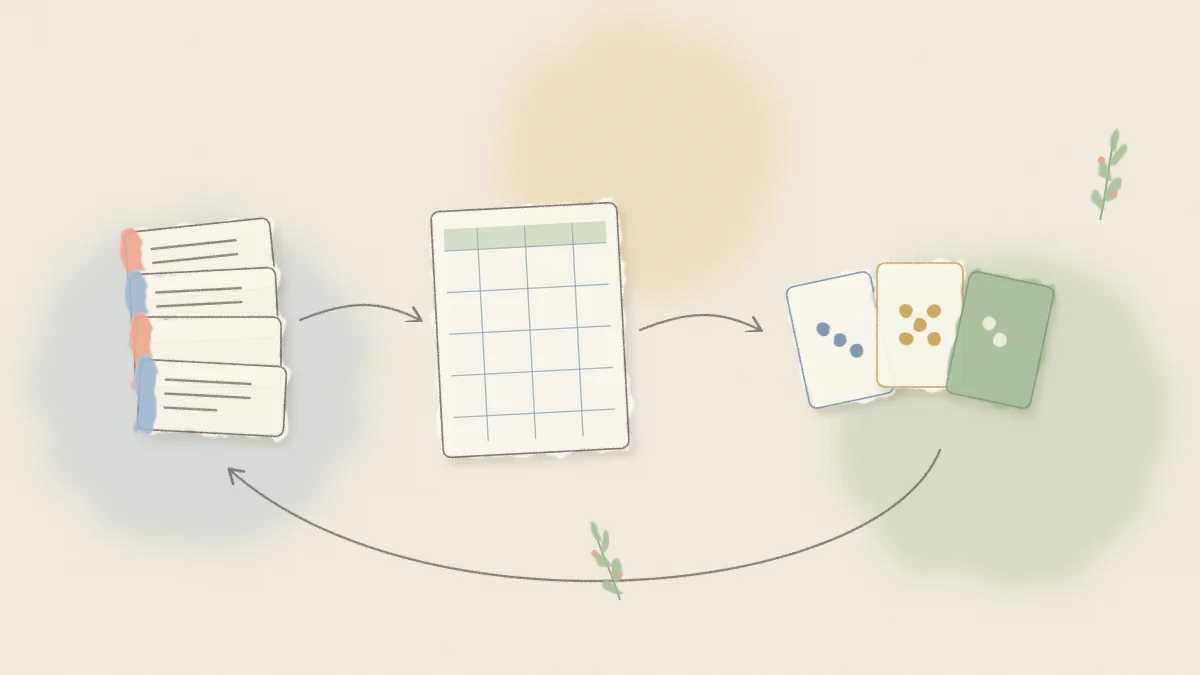
Jira holds your backlog, but it is not where most teams want to run a live estimation conversation. A separate planning poker room keeps votes hidden until reveal, makes disagreement visible, and lets people join without a Jira seat. The friction is moving tickets in and estimates back out, and this guide shows how to do that with a free planning poker room on Nextretro.
This guide walks through that round trip using CSV files. You export a Jira search, import it into a Nextretro room, estimate together, and then put the story points back on the issues. Nextretro does not connect to the Jira API; the round trip uses a CSV file in each direction, which means it works with any Jira setup you can export from.
New to the technique itself? Start with how planning poker works for the rules, then come back here for the Jira steps.
What you need before you start
- Permission to search and export issues in the Jira project you want to estimate.
- A way to write estimates back. Small batches can be typed by hand. Updating many issues from a CSV usually needs Jira administrator access, so check with your admin if you plan to do that.
- An agreed estimation scale. Jira stores story points as a number, so a numeric deck such as Fibonacci or modified Fibonacci is the simplest choice. If you want T-shirt sizes, read Fibonacci vs T-shirt sizing for how to convert them before they go into Jira.
Step 1: Find the issues with a JQL search
Open Jira's issue search and switch to JQL if you prefer typing queries. A typical query for an estimation session selects unestimated backlog items in one project, for example:
project = SHOP AND sprint is EMPTY AND statusCategory = "To Do" ORDER BY Rank ASC
Adjust it to your project. Some teams add a label such as ready-for-estimation so only refined items come through. Others filter on the story points field being empty. The exact field name for story points differs between Jira setups, which is covered in step 6.
Keep the list to what the team can realistically discuss in one session.
Step 2: Export the results to CSV
From the search results, use the Export menu and choose a CSV option. Jira usually offers an export of all fields and an export of the current fields shown in the list. The current fields option is cleaner. Before exporting, make sure the visible columns include at least:
- Issue key, such as
SHOP-142 - Summary, the ticket title
Menu labels can differ slightly between Jira Cloud and Data Center and change over time, so look for "Export" near the top of the issue list if the wording is not exactly the same.
If you only have a few tickets, you can skip the file entirely and paste lines like SHOP-142 Add guest checkout into the room, one per line. Nextretro recognizes the key at the start of each line.
Step 3: Import the CSV into a Nextretro room
Open /planning-poker, create a room, and import the CSV. A Jira export is recognized by its Issue key and Summary columns, so each row becomes a ticket with its key and title. Extra columns in the file are fine.
Choose the deck now. For Jira story points, Fibonacci (0 1 2 3 5 8 13 21 34 55 89) or modified Fibonacci (0 ½ 1 2 3 5 8 13 20 40 100) are the usual options. Both decks also include a ? card and a coffee card.
Share the room link. Participants join with a display name; nobody needs an account, and nobody needs a Jira license to take part in the vote.
Step 4: Estimate each ticket
Work through the list one ticket at a time:
- The Product Owner or ticket author explains the item. Keep the Jira issue open in another tab if people need to read the description or acceptance criteria.
- Everyone votes privately. Votes stay hidden until the cards are revealed.
- Reveal. The room shows the average, the median, the level of agreement, and a suggested card.
- If the votes are spread, the highest and lowest voters explain their reasoning first.
- Start a re-vote if the discussion changed what people know. A re-vote begins a fresh round.
- The facilitator sets the final estimate and moves to the next ticket.
If a ticket collects several ? cards, do not force a number. Note it for refinement, skip to the next ticket, and update the Jira issue afterwards with a comment explaining what is unclear.
Step 5: Export the final estimates
When the session ends, export the results from the room. You get a CSV with the issue key and the final estimate for each ticket. Keep this file; it is your record of what the team agreed, and it is what you use to update Jira.
Check the file before writing anything back. Make sure every key you expect is present and that skipped tickets do not carry an accidental value.
Step 6: Write story points back to Jira
There are two practical ways to get the numbers into Jira. Pick based on how many issues you estimated and what access you have.
Option A: Edit the field on each issue
For a typical session, editing by hand is often quickest. Open each issue from the exported list, or use your board's backlog view, and type the agreed value into the story points field. With the CSV open next to Jira, it takes a few seconds per issue.
Know which field you are editing. Company managed Scrum projects commonly use a field called Story Points. Team managed projects commonly use Story point estimate. If your board does not show estimates, check the board's estimation setting to see which field it reads.
Option B: Update existing issues with a CSV import
For larger batches, Jira's CSV importer can update existing issues rather than create new ones. In general terms:
- Prepare a CSV with one column holding the Issue key (or the issue ID, depending on what your Jira version's importer asks for) and one column holding the estimate.
- Run the CSV import from Jira's system import settings. This is typically an administrator function.
- Map the key or ID column to the issue identifier so the importer matches existing issues, and map the estimate column to your story points field.
- Run it on one issue first and confirm the value landed in the right field before importing the rest.
The exact screens and options vary by Jira version, so follow Atlassian's current documentation for the importer if you have not used it before. A mistaken mapping can create duplicate issues or overwrite the wrong field, which is why the one issue test matters.
Bulk change in Jira can set the same value on many issues at once. That does not help here, because each issue has its own estimate.
A worked example
This example is illustrative, not a report of a real team's results.
A team exports 12 issues from the query in step 1. In the Nextretro room they estimate 10 of them. Two tickets get several ? cards because the payment provider's requirements are unclear, so the facilitator skips them and the Product Owner agrees to clarify before the next refinement.
One ticket, SHOP-151 Add saved addresses, is revealed with votes of 3, 3, 5, and 13. The engineer who voted 13 explains that the address service is shared with another team and any schema change needs their review. After a short discussion, the re-vote lands on 8 and 8 and 13 and 8, and the facilitator records 8.
After the session, the facilitator exports the CSV, types the 10 values into Jira's story points field, and adds a comment on the two skipped tickets. The whole write back takes a few minutes.
Tips for a smoother Jira round trip
- Refine before you export. Estimation sessions go faster when every ticket already has a clear description and acceptance criteria.
- Keep the deck consistent. If the team switches decks between sessions, old and new estimates are hard to compare in Jira reports.
- Agree on rounding. If the team splits between two adjacent cards, decide whether you take the higher value or discuss further, and apply the rule every time.
- Plan right after. Once estimates are in Jira, a sprint planning board helps the team agree which items fit the next sprint and why.
- Review the gap later. In your next retrospective, look at tickets where the actual effort surprised everyone. A free online retrospective board on Nextretro works well for that, and you can start one straight after estimating.
Using Azure DevOps or Linear on another team? The same CSV approach works; see planning poker for Azure DevOps and Linear.
Frequently asked questions
Can I run planning poker for Jira without a Jira plugin?
Yes. Export the issues you want to estimate from a Jira search as CSV, import the file into a planning poker room, and vote there. After the session, export the final estimates and write them back to Jira, either by editing the story points field on each issue or with a CSV import that updates existing issues.
Which Jira columns does Nextretro need from the CSV?
The Issue key and Summary columns. A Jira export is recognized by those columns, so each row becomes a ticket with its key and title. Other columns in the file are ignored. You can also paste lines in the form KEY-123 Title, one per line, instead of importing a file.
Does Nextretro sync story points to Jira automatically?
No. There is no Jira API sync. You export the final estimates as a CSV that includes the issue key, then update Jira yourself. For small sessions that means typing the values into each issue; for larger ones, a Jira administrator can use a CSV import that updates existing issues.
Why is my story points field called something different?
Jira setups vary. Company managed Scrum projects commonly use Story Points, while team managed projects commonly use Story point estimate. Check which field your board uses for estimation before writing values back, and test any CSV import on a single issue first.
Do participants need a Jira license to vote?
No. Participants join the Nextretro room from the link with a display name and do not need an account or a Jira seat. Only the person exporting issues and writing estimates back needs Jira access.